Chat Command /
1. Overview
The Chat Command / is the heart of Datus-CLI. It enables you to converse with the AI agent in a multi-turn session, describe tasks in natural language, and receive reasoning steps and SQL code suggestions. Think of it as your copilot for exploring data, drafting SQL, and planning workflows — all directly in the CLI.
You can chat with Datus in any format — plain English, bullet points, or sketches of logic — and freely edit or follow up on its responses. The agent keeps track of your instructions and previous outputs, so you can iteratively refine results without starting over.
2. Basic Usage
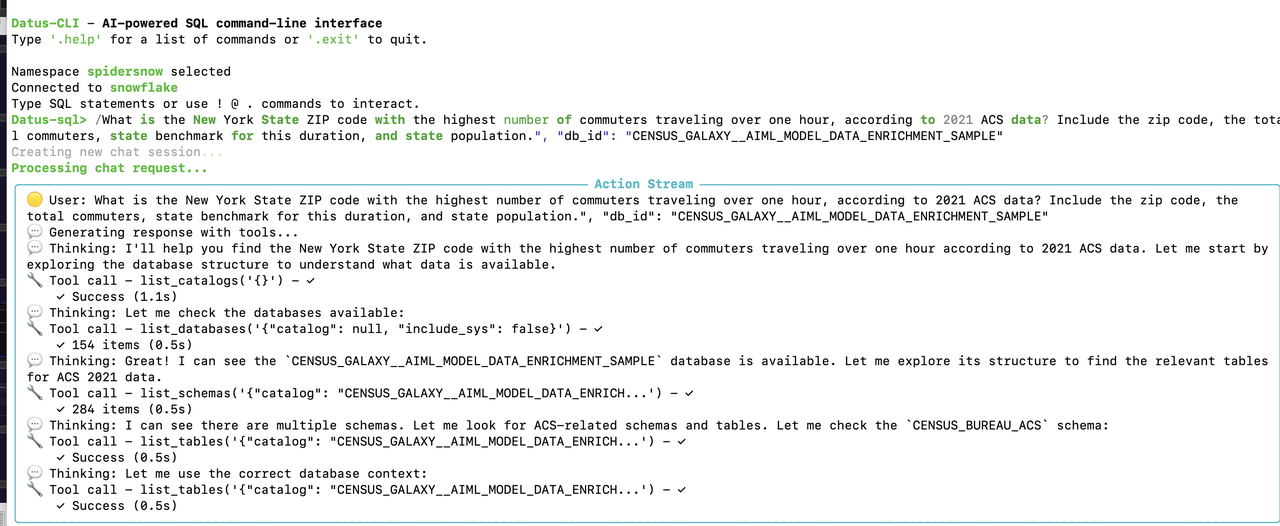
Start a new chat session by entering / followed by your message:
The agent will respond with its reasoning process and a proposed SQL query. You can then follow up naturally:
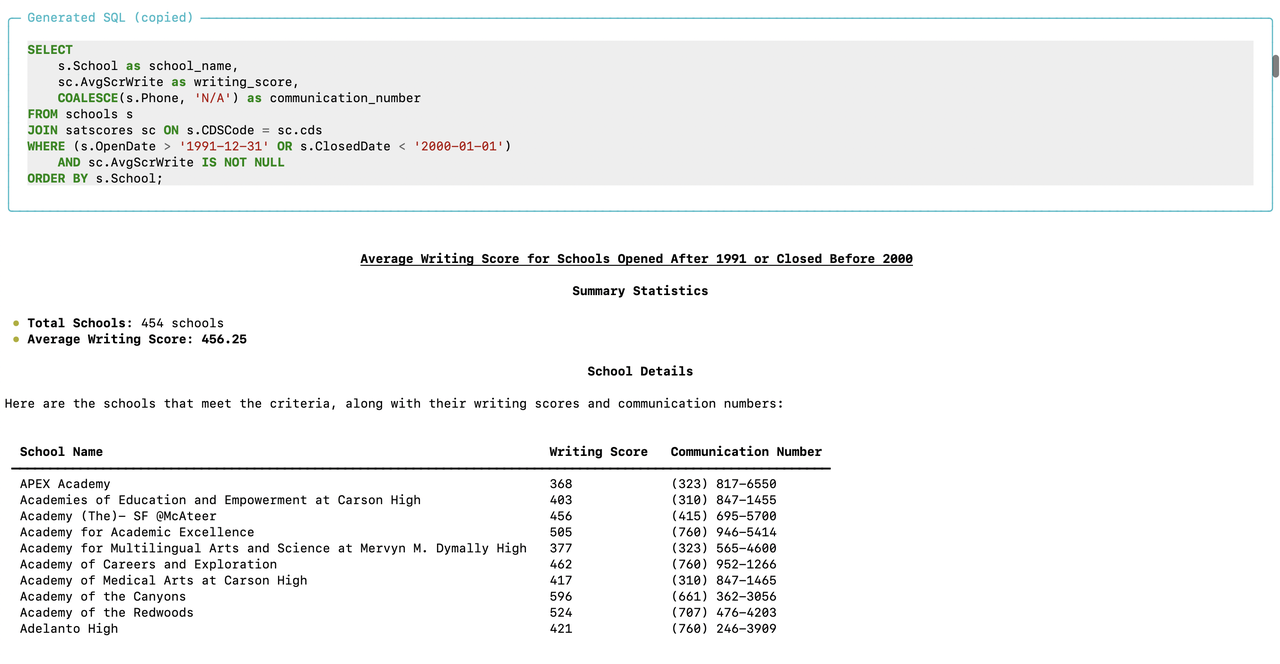
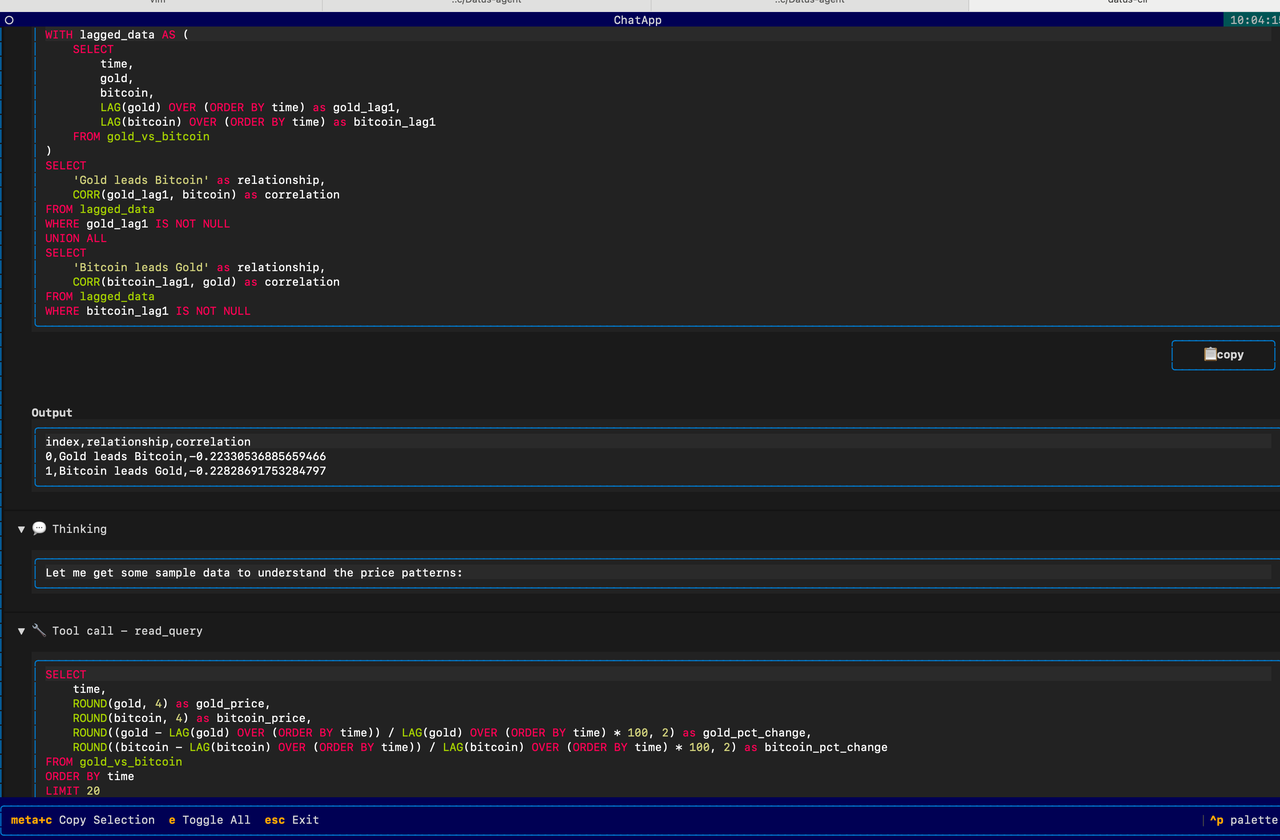
Datus streams the output as it thinks — showing each action's execution result in real time. If the result contains SQL, it will:
- Automatically highlight the SQL in the output
- Copy the SQL to your clipboard for quick use
- Finally produce a Markdown-formatted summary of the result
3. Advanced Features
Metric Queries and Attribution
Chat can directly discover and query existing semantic metrics and run attribution with list_metrics, get_metric, get_dataset, query_metrics, attribute_metrics and attribute_dimensions. Follow-up questions and longer analysis stay in the same chat; these capabilities do not require an AskMetrics handoff.
For complete tables, chat continues query_metrics with the same result_id, the next offset and a page_size. It can also read bounded cached pages with get_query_metrics_result. Both paths read the existing cache without rerunning the query; cached rows remain subject to the current policy, datasource and metric scope.
When no suitable metric exists, chat can generate and execute read-only SQL using available schema and business knowledge. A missing metric does not require creating one. Metric authoring starts only when you explicitly request creating or changing definitions.
Use AskMetrics or another scoped business agent when you select its particular context or published interface. Its configured tool and data permissions continue to apply. A non-empty chat tools allowlist replaces the defaults; add the desired semantic_tools.<method> entries to enable metric capabilities in an existing allowlist. Omitting tools or setting tools: [] uses the default tools.
Context Injection
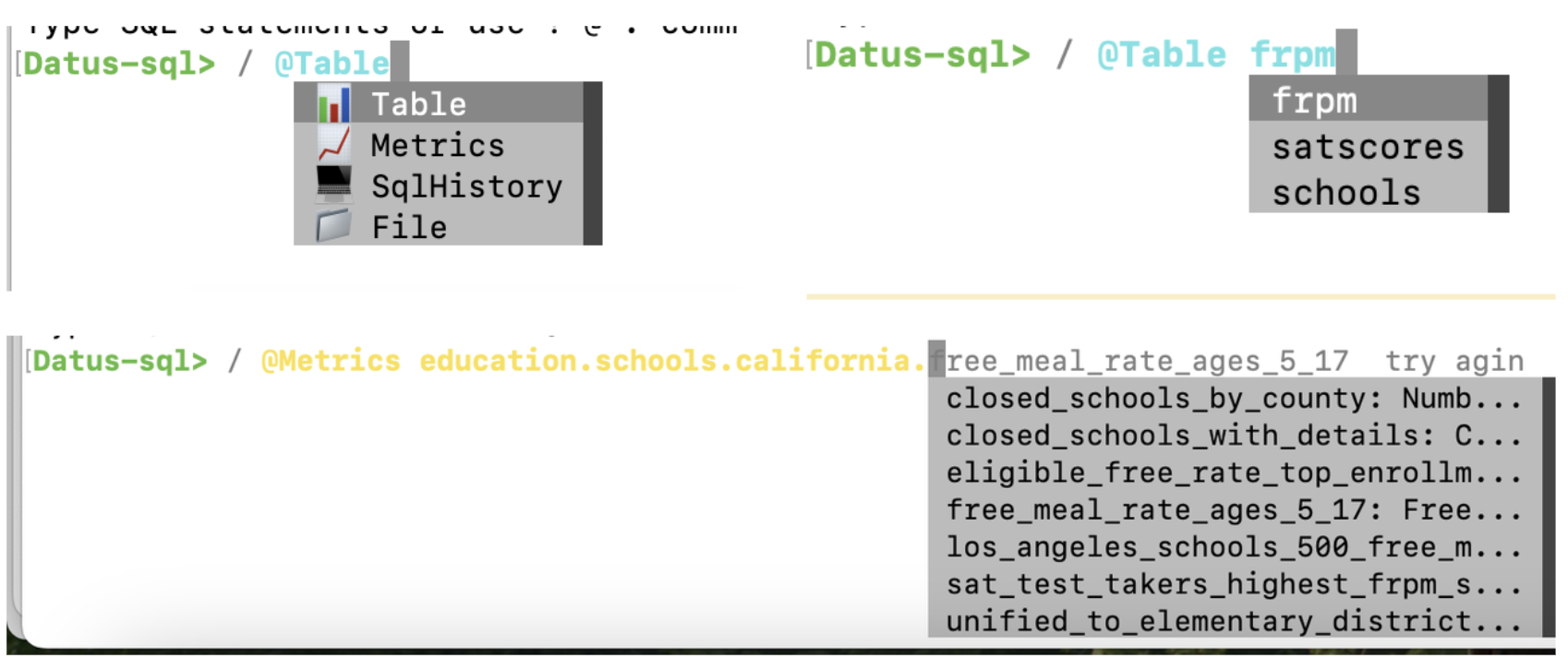
Context Injection allows you to pull existing tables, metrics or files into your conversation. There are two ways to do this:
Browse Mode
Type @ and press Tab to browse your context tree step by step. You can navigate by category (table / file / metrics) and drill down the directory-like structure to select the exact item you need.
Fuzzy Search Mode
Type @ followed by some keywords, then press Tab to trigger a fuzzy search. Datus will suggest context items ranked by textual similarity, letting you quickly find what you need without knowing the exact path.
This is the fastest way to ground your prompts with precise context.

Interrupt Execution
Press ESC or Ctrl+C while the agent is running to gracefully interrupt the current execution. The agent will finish its current step, then stop and return control to you.
After an interrupt, the session remains intact — you can continue typing new instructions, refine your question, or provide additional context. Nothing is lost.
Toggle Trace Display
Press Ctrl+O while the agent is running to toggle the trace display mode between compact (progress only) and verbose (full step details). This lets you control how much detail you see during execution without interrupting the agent.
Switch Permission Mode
Press Ctrl+P to cycle the permission mode through normal → auto → dangerous → normal. The shortcut remains active while the agent is running, and the new mode applies to subsequent tool permission checks in the current conversation.
Mid-run Message Insertion
While the agent is running, you don't have to wait for it to finish before adding more context. Type into the input box and press Enter — the text is queued and delivered to the model right before its next LLM turn, so it influences the run already in progress rather than starting a new one.
How it works:
- A pinned preview appears above the bottom status bar showing every queued message. The preview collapses to zero rows when the queue is drained.
- At each LLM turn, every queued message is drained, appended to the model input as
useritems, and persisted to the session history. - If the run finishes its final turn while items are still queued, the residue auto-continues in a fresh run so nothing you typed is silently dropped.
- Inserted messages are kept in the rendered transcript across
Ctrl+Overbose/compact toggles and on/resume, so you always see what you injected.
This complements — rather than replaces — ESC / Ctrl+C (interrupt) and /chat/stop. Use insertion when you want to steer the current run with new context; use interrupt when you want to abort it.
Session Commands
/clear: Clear the current session context and start fresh/compact: Compress previous turns to reduce memory usage while preserving context- Runs a major compact: the whole session is summarized by the model into a single recap, with the full history saved to a JSONL file for recovery
- Auto-trigger: a major compact also runs automatically when the model context usage exceeds 90% (configurable); separately, a lighter minor compact archives eligible old tool output during the same check before each model request, including the first request
- See Context Compaction for the major/minor difference and tunable parameters
/chat_info: Show the current active context (messages, tables, metrics)/resume [session_id]: Resume a previous chat session- Without arguments: displays a table of all available sessions (sorted by last modified time), then prompts you to pick one by number
- With a session ID: directly resumes that specific session
- After resuming, the full conversation history is replayed so you can see what was discussed, and you can continue chatting from where you left off
- If the session has high token usage (>50k tokens), a hint is shown suggesting
/compactto reduce context size /rewind [turn_number]: Rewind the current session to a specific user turn, creating a new branched session- Displays a numbered table of all user turns in the current session
- You select a turn number — the session is cloned up to (and including) that turn's assistant response, producing a new session
- The original session is preserved; the rewound copy becomes your active session
- Without arguments: shows the turn table and prompts for a turn number
- With a turn number: directly rewinds to that turn
- Useful when you want to retry a question with different phrasing or explore an alternative path without losing the original conversation