Web Chatbot User Guide
Overview
The Datus Web Chatbot provides a user-friendly web interface for interacting with the Datus AI assistant. It serves a React-based frontend (@datus/web-chatbot) backed by the Datus Agent FastAPI server, offering an intuitive chat experience for natural language to SQL conversion without requiring command-line knowledge.
Quick Start
Launch the Web Interface
With Datasource:
With Custom Configuration:
Custom Port and Host:
The web interface will automatically open in your browser at http://localhost:8501 (or your specified port).
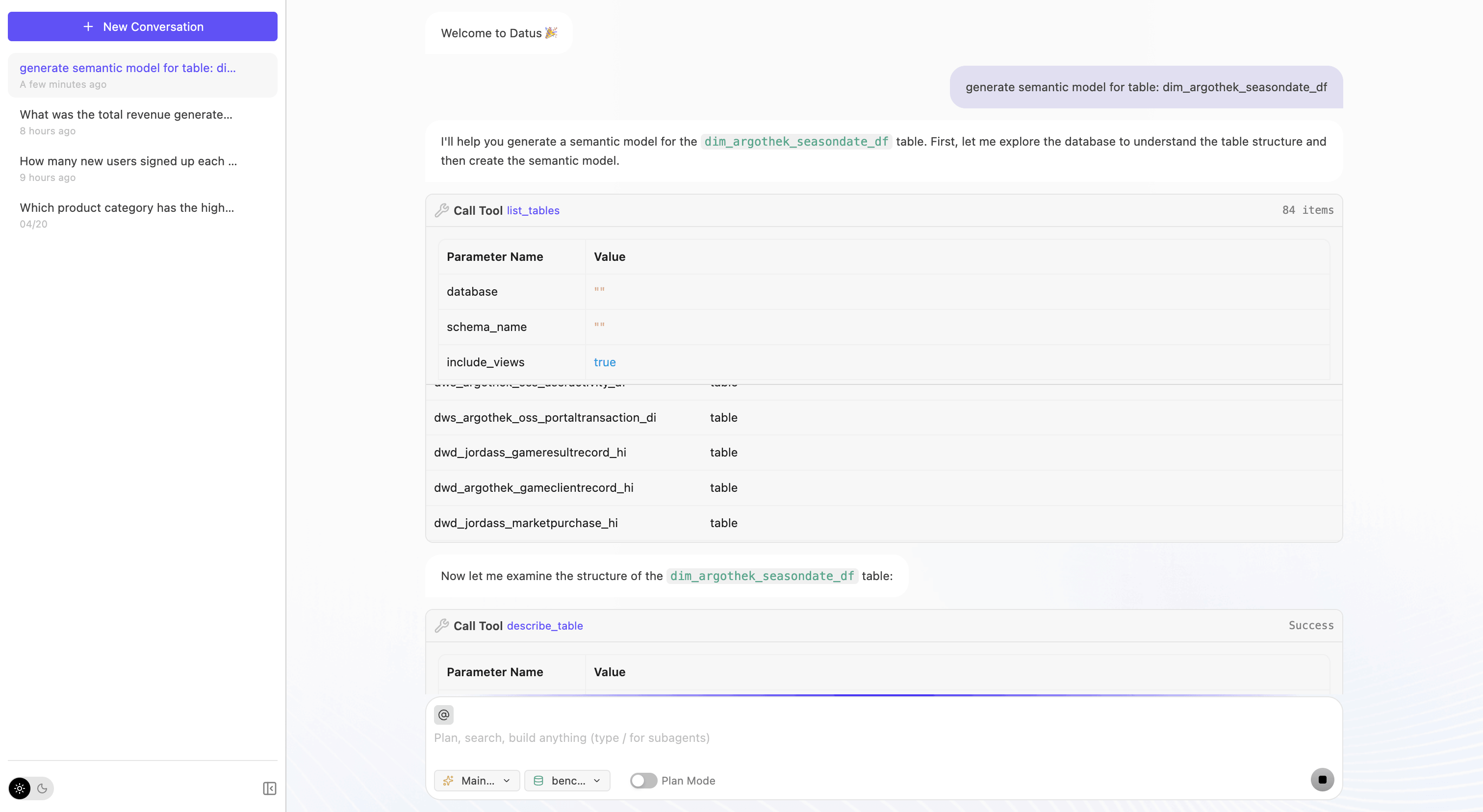
Main Features
1. Interactive Chat Interface
Natural Language Queries:
Simply type your question in plain language, and the AI will generate SQL and execute it.
Example:
The assistant will:
- Understand your question
- Generate the appropriate SQL query
- Display the SQL with syntax highlighting
- Show the AI's explanation
2. Subagent Support
Access specialized subagents for different tasks directly from the web interface.
Available Subagents:
The available list comes from built-in subagents plus any custom entries under agent.agentic_nodes for the current database. Common examples include:
gen_sqlgen_reportgen_semantic_modelgen_metricsgen_dashboardscheduler
How to Use:
- Open the main chatbot page
- Switch to the subagent you need
- Chat with the specialized assistant
Direct URL Access:
You can bookmark subagent URLs for quick access:
http://localhost:8501/?subagent=gen_metrics
http://localhost:8501/?subagent=gen_semantic_model
http://localhost:8501/?subagent=finance_report
You can also launch the web UI directly into a subagent from the CLI:
3. Session Management
View Session History:
The sidebar shows your recent chat sessions with:
- Session name
- Creation time
Load Previous Sessions:
- Find the session in the sidebar
- Click the session name
- Open the session to review its history or continue the conversation
Session Sharing:
Each session has a unique URL that can be shared:
4. Success Story Archive
Mark Successful Queries:
When the AI generates a SQL query that works well:
- Review the generated SQL
- Click the "Save to success story" button
- The query is saved to
~/.datus/benchmark/[subagent]/success_story.csv
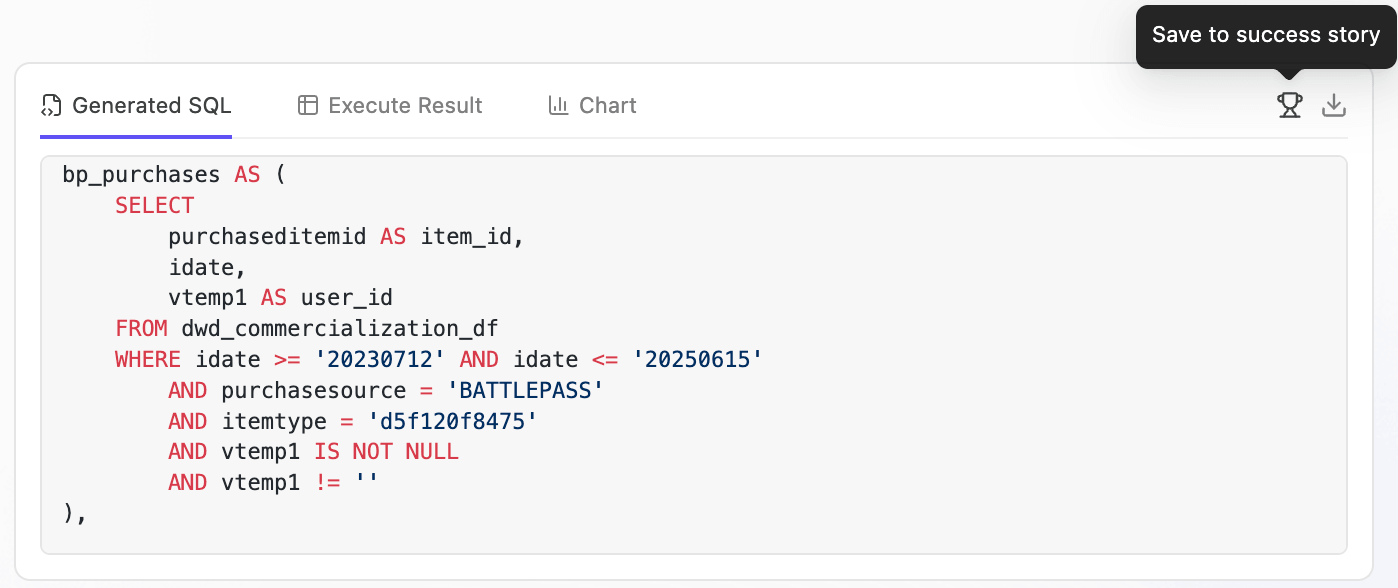
CSV Format:
session_link,session_id,subagent_name,user_message,sql,timestamp
http://localhost:8501?session=...,abc123...,chatbot,"Show revenue by category",SELECT ...,2025-01-15 10:30:00
This helps track effective queries for benchmarking and improvement.
Summary
The Datus Web Chatbot provides:
- User-Friendly Interface: No command-line knowledge needed
- Subagent Access: Specialized assistants for different tasks
- Session Management: Save, load, and share conversations
- Success Tracking: Mark and collect effective queries
- Easy Sharing: One-click session link copying
- Visual Execution: See step-by-step query generation
- Multi-Datasource Support: Switch between databases easily